Website chat widget
A website chat widget is the button in the corner of a site and the chat window it opens. It’s the part of your support your customers actually see, so it has to load quickly, look like your site and say something useful. Deacon’s widget is the front of an AI customer support agent for founders. It answers your customers in seconds from your own docs, says so when it doesn’t know and asks for their email, and when you reply from the dashboard, your words appear in the same chat. You add it with one script tag and match it to your site against a live preview. Every question it hears shows you what customers are stuck on, and no plan has a badge you pay to remove.
On every plan, including the free one.
At a glance
| What it is | A button that opens a chat window on your site. Deacon answers in it from your content, and you can reply in it too. Everything Deacon does behind the widget |
|---|---|
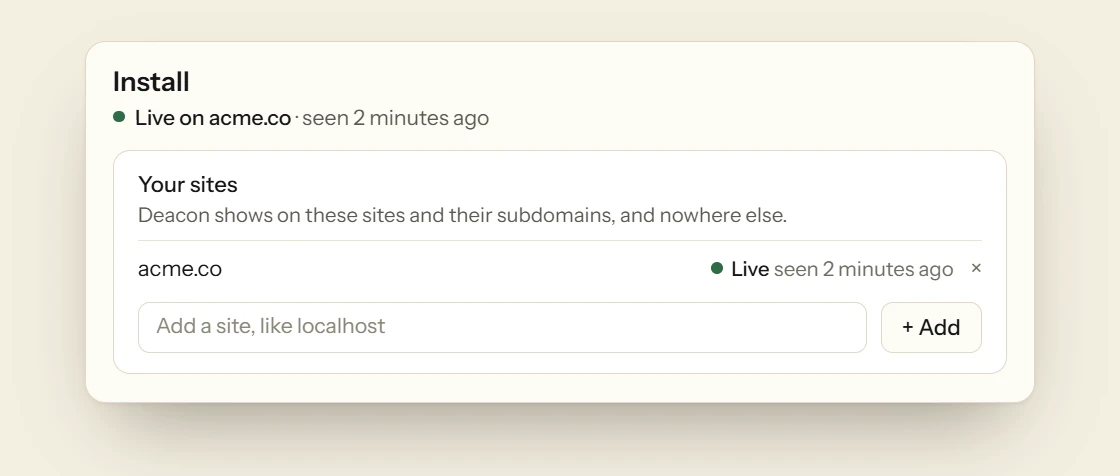
| Install | One script tag, loaded with async, and a list of the domains it may run on, each with its subdomains. On any other domain it stays hidden. |
| Your colours | The button, the window and its border, Deacon’s words, your visitor’s words and your team’s replies, the ask box’s text, the accent and the send button, plus corners from square to 32 pixels, 20 by default. |
| Placement | Bottom right, left or centre, up to 64 pixels in from each edge, with a button label of your own. Or hide the button and open the chat from your own link with Deacon.open(). |
| On a phone | Below 640 pixels wide it opens as a full-width sheet above the home bar. |
| Past chats | Visitors can start a new chat and reread their own chats from the last 30 days, in the browser they used. |
| Files | Visitors can add a screenshot, a PDF or another file to a message, with the paperclip, by pasting or by dropping it, and Deacon reads pictures, PDFs, Word and text files to see what they’re showing it. A switch turns files off. |
| What stays | The Deacon mark on the button and beside each of Deacon’s replies, and the Ask AI box and the widget’s other fixed words, which come in English and 40 other languages. There’s no dark mode. |
| Plans | Every plan, the free one included, with the same widget and no badge to pay to remove. |
| What it isn’t | Live chat with a queue. You can reply in any conversation, but nothing routes chats or tells visitors who on your team is online. Chatbot vs live chat |
From one line of code to your customer’s first answer
Only the first step needs code on your site, unless you open the chat from your own link. You match and place it in Deacon’s dashboard, against a live preview.
One line, loaded after your page
Copy the script tag from the Install page, where the site you signed up with is already listed, and paste it before the closing body tag. It loads with async, so your page draws first. The button sits in a closed shadow root and the chat in a frame of its own, so your styles and the widget’s can’t touch each other, and it claims no keyboard shortcut on your page. The chat window itself loads when a visitor points at the button or tabs to it, or straight away for someone who had it open on the page before. Building with Claude Code, Cursor, Codex or ChatGPT? Press Copy the prompt, and an agent adds the tag and checks it’s live.
Match it to your site
The Appearance editor sets the colours of the button, the window and its border, Deacon’s words, your visitor’s words and your team’s replies, the ask box’s text, the accent and the send button. Corners run from square to 32 pixels, 20 by default, with Square, Soft, Default and Round presets over the slider, and the greeting is yours to write in up to 300 characters. Every change shows in a live preview, and a note warns you when two colours are hard to read together. Your changes stay a draft, even through a refresh, and nothing changes on your site until you press Publish. Revert to live throws the draft away.

Put it where it fits
The button can sit bottom right, bottom left or bottom centre, up to 64 pixels in from each edge, which clears a cookie bar or another floating button. Its label is yours, up to 24 characters, and it reads Help until you change it. A Files switch on the same tab takes the paperclip away, if you’d rather visitors didn’t send files. If a floating button doesn’t suit your design, hide it and open the chat from your own Help link with Deacon.open(). Deacon.close() and Deacon.toggle() work too, from the moment the script has run, and your page hears deacon:open and deacon:close as the chat opens and closes. It hears deacon:unread too, with how many of your replies the visitor hasn’t read, so your own button can show the count.

What your visitor sees
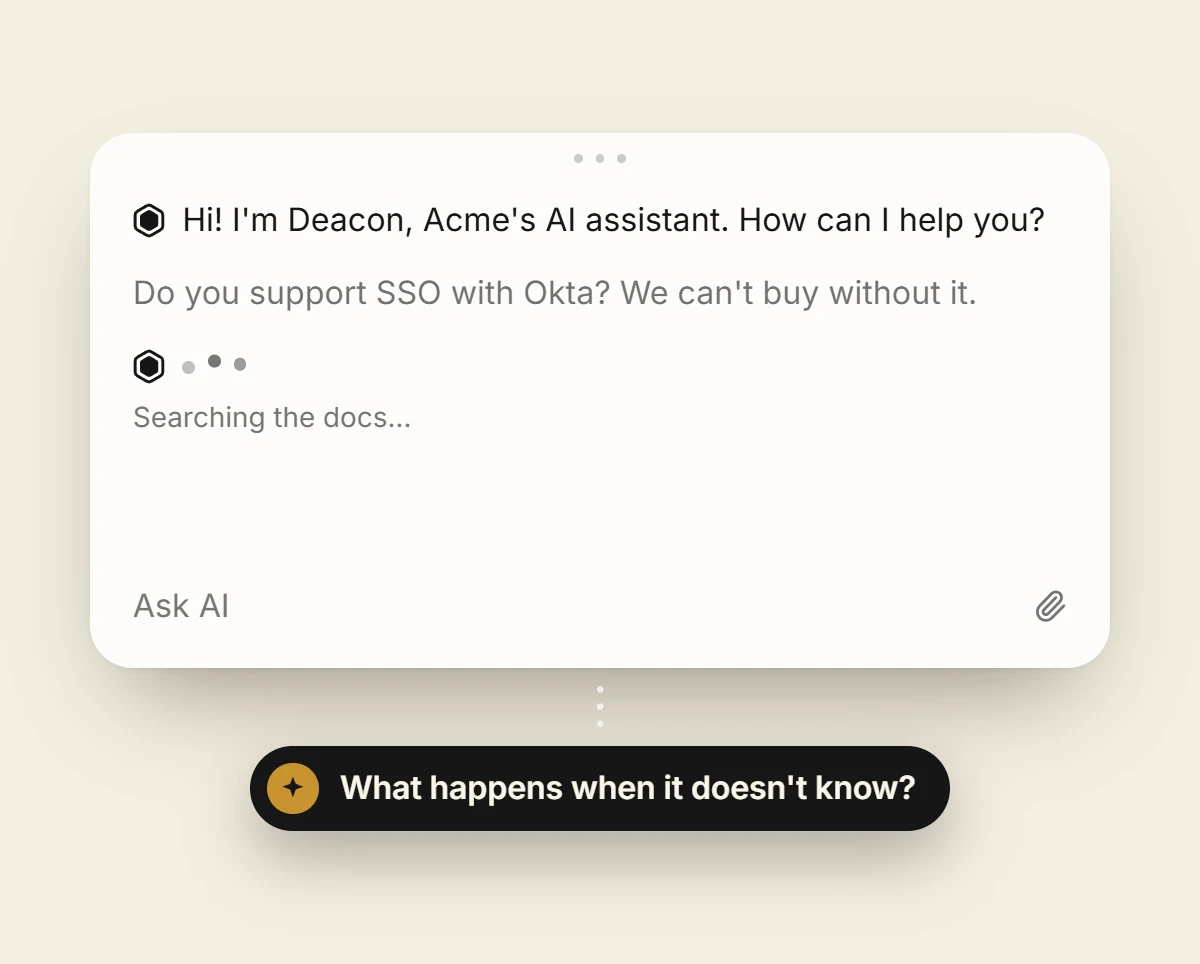
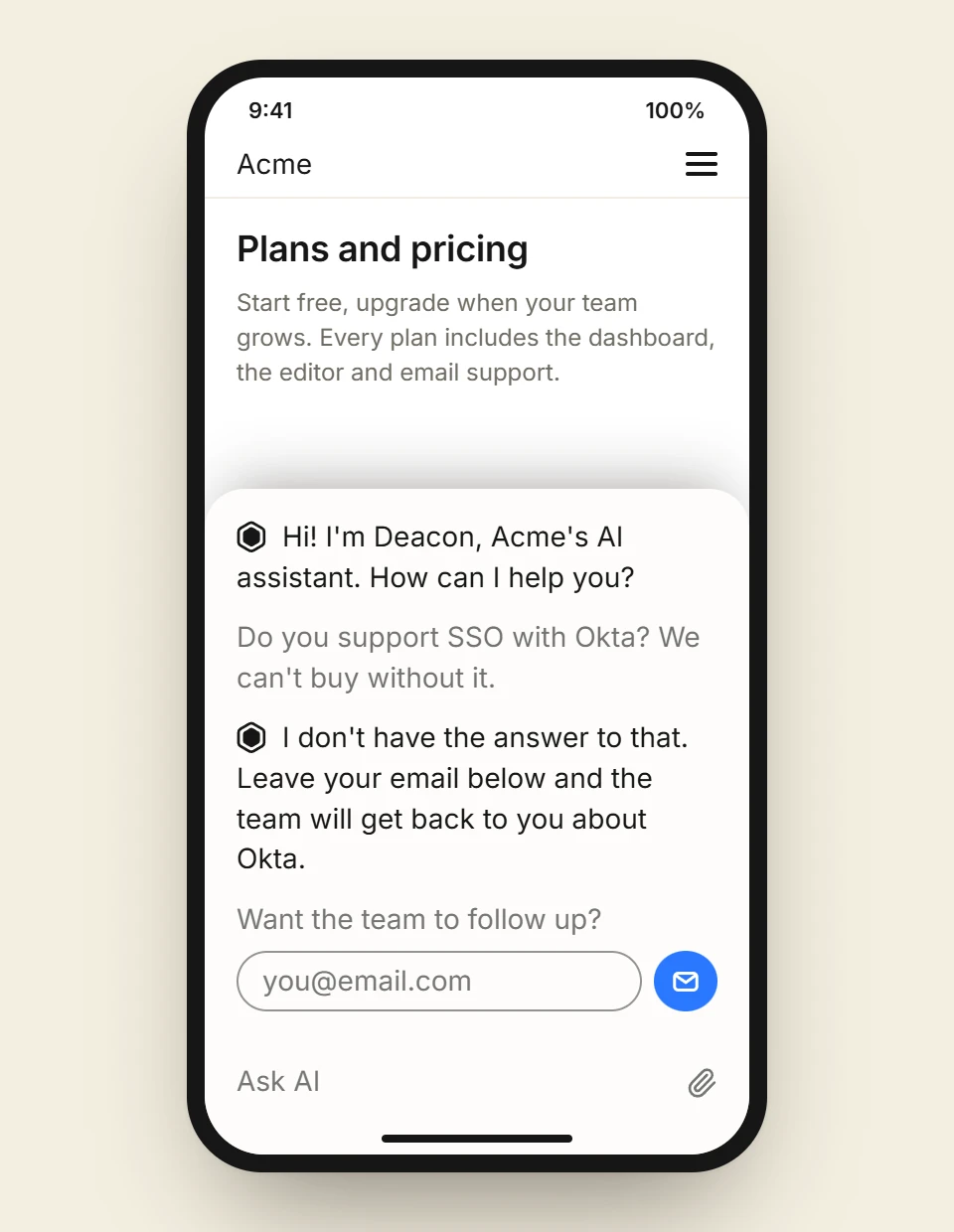
The window opens on your greeting, with the Deacon mark beside it and a box that reads Ask AI. Above the box sit up to three questions Deacon wrote from your pages during setup, so a visitor can ask one with a tap. A paperclip beside it adds a screenshot or a document, and Deacon reads it with their question, so a visitor can show it the error rather than describe it. While Deacon works, a line says it’s searching the docs and then drafting an answer, and the answer arrives in seconds, written out as it comes. When it comes from a page of your site, a link to that page usually sits under it. When your content doesn’t cover the question, Deacon says so and offers a field for the visitor’s email. If your app passes Deacon the name and email of whoever is logged in, that field already holds their address, and one tap sends it. When you reply from the dashboard, your words appear in the chat under your first name and your company’s, and if they’ve closed it, a red count on the button says how many replies they haven’t read. Clicking your page doesn’t close the chat, so a visitor can look something up and come back to a half-typed question, and on a desktop they can drag the window out of the way. The conversation follows them from page to page and survives a reload.
A new chat, or an old one again
Once a chat has a question, a pen in the small bar under the window starts a new chat straight away, with nothing to confirm. A clock beside it opens Recent chats, the visitor’s chats from the last 30 days in that browser, newest first. An old chat opens to read, and a dot marks one where you replied after they’d gone. A chat ends after 20 quiet minutes, or after three days while the visitor is waiting on your reply. The ask box stays, and the visitor’s next question starts a new chat.
On a phone, a sheet
Below 640 pixels wide, the window opens as a sheet across the full width of the screen, no taller than four fifths of it, and it sits above the home bar on an iPhone. The button grows to a size a thumb can hit. The ask box uses type large enough that Safari doesn’t zoom the page when a visitor taps it.
Put it on your site free, with no badge to pay to remove
Install it, set your colours, and ask it the question your customers ask most. You get 50 answers a month on the free plan, and it needs no card.
How to choose a website chat widget
Ask these of any widget before it goes on your site. The answers matter more than the feature list.
It loads after your page
A chat widget is someone else’s code on every page you have. Look for a script tag marked async, so your page draws first, and a chat window that loads only when someone wants it. Run a page speed test before and after.
It says who’s answering
People write differently to a bot and to a person, and they feel misled when they find out late. The widget should say plainly when an AI is answering, and show when a person takes over.
It admits what it doesn’t know
A bot that guesses your refund policy costs you more than one that says it doesn’t know. Ask what it does when your docs don’t cover a question. The right answer is to say so, take an email address and tell you.
Nobody has to sit and watch it
A live chat box with nobody behind it is worse than no chat at all. If you can’t staff it all day, choose one that answers on its own and takes a message for you.
Your colours, without a paid plan
Colours, corners and position should be free to change. Some tools charge to remove their badge, so find out which plan that’s on before you start.
It works on a phone
Open your site on your own phone and start a chat. The window should use the full width of the screen, and the page shouldn’t zoom when you tap the box to type.
It opens from your own button
A floating button suits most sites. If your design wants the chat behind a Help link or a button on your pricing page, the widget needs a JavaScript call you can hook up.
The conversation follows the visitor
Someone who asks a question and then clicks through to your pricing page should find the conversation still there. Someone who comes back next week should be able to find the answer they got, or start a fresh chat.
You know what it stores
Find out which cookies it sets, for how long, and what it keeps on its own servers. You need both for your privacy policy.
FAQ
Questions about the widget
Yes. The widget, the Appearance editor and the dashboard are all on the free plan, which needs no card and has no end date. There’s no “powered by” line on any plan, so there’s no badge to pay to remove. A paid plan buys more answers, knowledge, pages a month from your website and seats, never a better widget. See the plans
There’s no “powered by” line to remove, on any plan. The Deacon mark sits on the button and beside each of Deacon’s replies, and that stays. The default greeting says it’s Deacon, an AI assistant, and you can write your own.
The script loads with async, after your own page, and the chat window waits until a visitor points at the button, tabs to it or opens the chat. Run a page speed test before and after to see the difference on your own site.
Yes, on any of their plans that lets you add a script tag, and on any other site that does. Wix, Webflow and Carrd keep custom code for paid plans. There are guides for WordPress, Webflow, Shopify, Wix, Framer, Squarespace, Kajabi, BigCommerce, Carrd and Bubble.
Partly. Anyone on your team can reply inside any conversation from the dashboard, and the visitor sees the reply in the chat, or a red count on the chat button if they’ve closed it. There’s no queue or rota and nobody shows as online, so nobody has to sit waiting for chats, and Deacon answers the rest in seconds. For live chat with a queue, live chat software for a small business website compares eight tools. How human handoff works
Yes, in the browser they used. Recent chats lists their chats from the last 30 days, newest first, and an old chat opens to read rather than to carry on, so a new question starts a new chat. On another browser or device the list starts empty, and Safari forgets a visitor after about a week away.
Yes, when they’re logged in to your app and your app passes Deacon their name and email. Conversations lists the chat under their name, and Logged in as, beside the conversation, gives their id, email and name. When Deacon can’t answer, their address is already in the email field, so they don’t have to type it. On their own, these details are taken as your app sends them, unchecked. They label the chats in that browser, never reach the AI and never join chats across devices, and nothing is emailed to the visitor until they tap to send their address. Once your server signs them, Deacon verifies them, so your reply reaches their inbox without a tap and their chats follow them across devices on your real site. The “Do your users log in?” card on the Install page has a prompt your AI tool can follow to add it.
From setup, and they’re yours to change. While Deacon trains on your site, it writes the questions a visitor is likely to ask and answers them, and the widget offers up to three of the ones it answered, shortest first. You can reword, replace or clear them on Appearance’s Copy tab, and a team that didn’t go through setup has none until it writes some.
No. Deacon answers in the chat on your site and nowhere else. There’s no WhatsApp, Instagram or SMS channel, and no phone line or email inbox.
Deacon answers in the language each visitor writes in, whatever language your docs are in. The widget’s own words, such as Ask AI and the buttons, come in English and 40 other languages and switch to the visitor’s language once Deacon replies in it. The short fixed replies it sends when a month’s answers have run out or nothing in your content matched come in the chat’s current language.
Yes. As soon as the script loads, it sets a cookie called deacon_visitor_id and keeps the same id in local storage, so Deacon can tell a returning visitor from a new one. The cookie asks for 90 days, and Safari cuts it to about 7. It’s set even on a domain that isn’t on your list, where the widget stays hidden. Once a visitor opens the chat, it also keeps deacon_chats in local storage, never as a cookie, so later pages know to check for your replies. That lapses 30 days after they last opened the chat. If your app passes Deacon the details of whoever is logged in, the widget also keeps that person’s id, or their email, as deacon_signed_in in local storage, so the next person on a shared computer starts fresh, and removes it once a page says nobody is logged in. Within a tab, it keeps deacon_language and deacon_panel in session storage, which go when the tab closes. Put all of them in your cookie policy.
No. Deacon hosts the widget and the chat behind it, so there’s nothing for you to run or update.
Put it on your own site
It takes about five minutes to install. The free plan is 50 answers a month, for as long as you like.