AI chatbot for your website
An AI chatbot for your website answers visitors’ questions in a chat on your site, in seconds and in plain words, from what you’ve taught it. Deacon is one, built for founders who answer their own support. It learns from your website, your files and the answers you write, and when none of them covers a question, it says so instead of making something up. You hear about the conversations that need you and reply from the dashboard, with no helpdesk to set up. Every answer you write makes it better, and every question it hears shows you what customers are stuck on and what they want next. It goes on with one line of code, and the free plan needs no card.
On every plan, including the free one.
At a glance
| What it is | An AI customer support agent that answers in a chat on your website, and a dashboard that shows you everything people asked it. |
|---|---|
| What it learns from | Your website, crawled or a page at a time, plus PDF, Word, Markdown, text, CSV and HTML files, text you paste in and the answers you write. |
| How it answers | In seconds, at any hour, in the language the visitor writes in, and only from what your content says. An answer taken from a page of your site usually links to it. |
| When it doesn’t know | It says so and offers a field for the visitor’s email. You’re emailed when they leave it or ask for a person, and your reply from the dashboard appears in their chat. |
| What you learn | Every conversation, searchable by what visitors asked. Topics count how many people asked about the same thing, and the same script counts your visitors, their sources and your goals. |
| Install | One script tag on any site that takes one, or a prompt that Claude Code, Cursor or Codex follows to add it. How to add an AI chatbot to your website |
| What you build | Nothing. There are no flows, decision trees or canvas. You add content, and Deacon answers from it. |
| Plans | Every feature is on every plan, the free one included. The free plan needs no card and has no end date, and no plan has a badge to pay to remove. See the plans |
How Deacon works on your website, step by step
Only the second step touches your site. The rest happens in Deacon’s dashboard, and every step works on the free plan.
Give it your website, files and notes
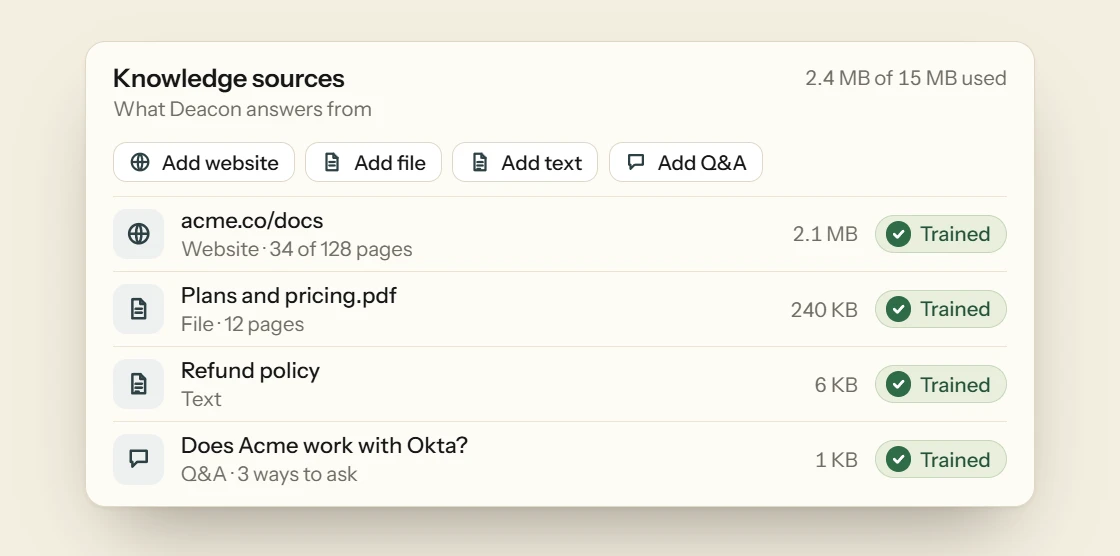
Choose Add website and Deacon crawls your site, up to a hundred pages a crawl, and lists every page it finds. Tick the ones worth answering from, such as your help pages, pricing and FAQ, then save and press Retrain agent. A single page added as a link, an uploaded file or text you paste in starts answering as soon as Deacon has read it. Files can be PDF, Word, Markdown, text, CSV or HTML, and a scanned PDF works too. Then write a few plain words in Instructions about how Deacon should talk to your customers, or let it draft them from your landing page.
Try it, then paste one line on your site
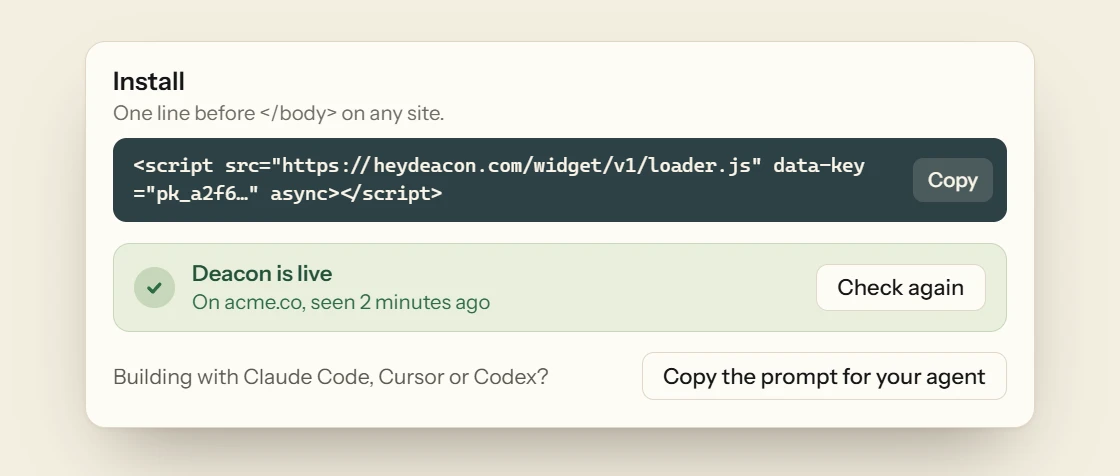
Ask it your customers’ questions in the Playground first. It’s the real widget, and its chats are never counted. When you’re happy, add your domains on the Install page, copy the script tag and paste it before the closing body tag. It loads in the background, so your page doesn’t wait for it. Building with Claude Code, Cursor or Codex? Copy the prompt for your agent, and it adds the tag and checks it’s live. The Install page tells you once Deacon has been seen on your real domain. Then set the colours, corners, position and greeting to match your site, as the website chat widget page shows.
It answers in seconds, or says it doesn’t know
Each question is searched against your content two ways, by meaning and by keyword, and Deacon writes its reply from the passages that fit, in the language the visitor wrote in. When the answer comes from a page of your site, a link to that page usually sits under it. When nothing you’ve given it covers the question, it says so plainly and offers a field for the visitor’s email, instead of guessing. A question too vague to answer gets one question back. A question about the visitor’s own account, order or data is always declined, because Deacon can’t see it. If your app tells Deacon who’s asking, such as their plan, it takes that into account.

You hear when someone needs you, and reply in their chat
Nobody has to watch the chat. Your team’s owners get an email when a visitor leaves their address or asks for a person, unless one of you already has the dashboard open. Open the conversation and type. Your reply appears in the visitor’s chat under your first name while they have it open, or goes to the address they left in that chat once they’ve gone. Deacon stops answering in that conversation until you hand it back. There’s no helpdesk, queue or rota to set up.

Answer once, and it needs you less
Every question your content didn’t cover waits in Conversations with an Answer this button. Write the answer in a few lines, let Tidy up with AI polish it if you like, and press Save & check. Deacon asks itself the question again and shows you the reply it now gives. When it answers, you also see how many other open questions your answer covers. Your answer becomes part of what Deacon knows, so it can answer the next person who asks, and the more you answer, the less it needs you.

See what customers are stuck on and what they want next
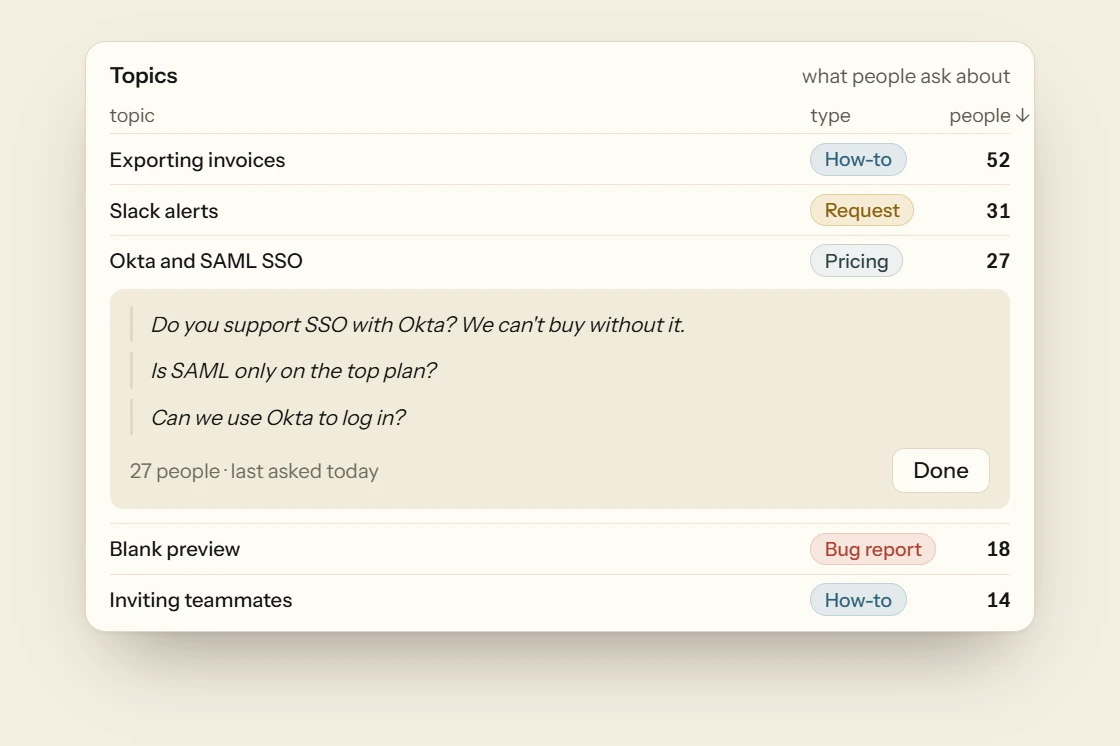
Every conversation is saved word for word and searchable by what visitors asked. Topics group similar product questions across conversations, count the people who asked and label most of them as a how-to, a bug report, a pricing question or another type, so the top of the list is what to fix or build next. Analytics › Widget shows how many people wrote in, the share who got an answer and the languages they wrote in. The same script counts your visitors, where they came from and the goals they reach, so there’s no second tool to add.
Put Deacon on your website today
Add your help pages, ask it what your customers ask in the Playground, and paste one line when it answers the way you would. You get 50 answers a month on the free plan, and it needs no card.
What to ask any AI chatbot before it goes on your website
Most AI chatbots do well on the questions you expect. Try these on any of them during a trial, with your own content loaded, because your customers will ask them in the first week.
Something your content doesn’t cover
Ask about a feature you don’t have or a policy you’ve never written down. The right reply says it doesn’t know and offers a way to reach you. A confident answer here is an invented one.
Something your content half covers
Ask a question your pricing page answers only in part, such as whether the yearly price includes tax. A good chatbot gives the part it can find and says what it can’t.
A question about the visitor’s own account
Ask why you were charged twice. Unless the chatbot is connected to your billing and checks who’s asking, it can’t know, so it should say so and pass the question to you.
A request for a promise
Ask for a discount, a refund or a date for a feature. A chatbot shouldn’t commit you to anything you haven’t written down.
A vague question
Type “it’s not working”. A good chatbot asks one question back to narrow it down, rather than guessing which problem you mean.
The same question in another language
Ask in Spanish or German. You want an answer in that language from the content you already have, with nothing to translate first.
A request for a person
Ask to talk to someone. Watch how quickly it stops trying, what it asks for, and how you hear about it.
A page you changed yesterday
Edit a page, then ask about the change. Find out when the chatbot picks it up, whether that’s straight away, on a schedule or only when you tell it to read the page again.
The transcript afterwards
Open the conversation in the dashboard. You should be able to read every word it said on your behalf and see where each answer came from.
Questions about AI chatbots for websites
A chat on your site that answers visitors’ questions in plain words, using conversational AI rather than a menu of buttons. The ones worth having answer from your own content, not from whatever their model picked up online. Deacon is one, built for founders and small teams who answer their own support, and it shows you what visitors ask as well as answering them.
There’s nothing to build. Many chatbot tools have you draw flows and decision trees, and a visitor who asks something you didn’t plan for falls off the end. Deacon answers from your content, so a question you never thought of still gets an answer if your content covers it, and an honest “I don’t know” if it doesn’t.
Making things up is what AI hallucinations are, and it’s why many founders don’t trust support bots. Deacon answers only from the passages it finds in your content for each question. When they don’t cover it, it says it doesn’t know instead of guessing. You can read every conversation and the source each answer named. Why support bots make things up
No. Deacon answers questions and hands conversations to you. It takes no actions in other systems, has no forms or calendar, and always declines a question about the visitor’s own account, order or data. Your site can pass it details about the visitor, such as their plan, and Deacon takes them into account when it answers.
Only the simple way. When Deacon can’t answer, or a visitor asks for a person, it offers a field for their email, and your team’s owners are emailed when they leave it. It has no lead form, and it never starts a conversation. The chat opens only when a visitor clicks it or your own site opens it.
A few minutes for the script. A file or a single page answers as soon as Deacon has read it. A whole website is ready once you’ve ticked the pages worth answering from and pressed Retrain agent.
Yes, and with any other site that lets you add a script tag. There are guides for WordPress, Shopify, Webflow, Wix, Framer, Squarespace, Kajabi, BigCommerce, Carrd and Bubble.
Yes. Every feature is on it. It needs no card, has no end date and nothing on it is deleted if you go quiet. The paid plans give you more answers, more content, more crawled pages and more seats. How the free AI chatbot plans compare
Visitors get a short reply saying Deacon can’t look into it right now, and are asked for their email unless they already left it in that conversation. You can still read and reply to every conversation. Nothing is billed past your plan’s answers, and no plan upgrades itself.
No. Deacon answers in the chat on your website and nowhere else. There’s no WhatsApp, Instagram or SMS channel, no phone line and no email inbox.
Put an AI chatbot on your website
It takes about five minutes to install. The free plan is 50 answers a month, for as long as you like.