USE CASE
Shopify AI chatbot, from Inbox to one script tag
What Shopify Inbox’s free AI agent and the top chatbot apps do and cost, and where a chatbot’s script tag goes in your theme so updates keep it.
You can put an AI chatbot on a Shopify store in two ways. You install a chat app from the Shopify App Store, including Shopify’s own Inbox, or you paste a hosted chatbot’s script tag into your theme once. Inbox now comes with a free AI agent, and the popular chatbot apps give you a set number of AI conversations before you pay. We read each app’s listing and prices below on 23 September 2026.
Deacon is an AI customer support agent you add to your Shopify theme with one line of code, and no app. It replies to shoppers within seconds, using what your store’s own pages say, tells them plainly when it doesn’t know, and groups what they ask so you can see what holds them back. Its free plan has 50 answers a month, with no card and no end date.
Shopify’s own AI chatbot, the Inbox agent
Shopify makes two AI assistants you’ll come across, and only one of them talks to your shoppers. Sidekick works in your admin, for you. Shopify Inbox is the free chat app for your storefront, and its Inbox agent answers shoppers by itself once you turn it on.
The agent answers from your products, store policies, pages and Knowledge Base, and for a product in your catalogue it can also cite web search for reviews and ratings. It can look up an order once the shopper signs in, add products to their cart and reply in the shopper’s language, as Shopify’s guide to the agent describes. Shopify’s guides also say what the agent needs, where it stops and what it reports, and these matter most when you answer support on your own.
- Inbox is only on the Basic, Grow, Advanced and Plus plans, and the agent needs Shopify’s new customer accounts. A store on legacy accounts keeps its chats with staff.
- When nobody on your staff is available, the agent gives the shopper your store’s email address so they can write to you.
- Shoppers see a notice that the chat is powered by Shopify and that they’re talking to AI, and you can’t remove or change it.
- Rating its replies shapes how it sounds. Shopify says training doesn’t change what it knows, so fixing a wrong or missing fact means editing a product, a policy, a page or your Knowledge Base.
- Its chats can carry tags such as Sales, Support and Store Policies, based on what the agent did, and its Overview page counts assisted sessions, assisted orders, a satisfaction rate and response time.
What the Shopify chatbot apps give you for free
In a web search for “shopify ai chatbot” on 23 September 2026, the first two App Store listings were Chatty and Tidio, and both have a free plan. Here they are beside Inbox, with the ratings and prices their listings showed that day.
| App | App Store rating | How it answers | What’s free |
|---|---|---|---|
| Shopify Inbox | 4.5 from 5,782 reviews | Shopify’s agent, from your catalogue, policies, pages and Knowledge Base | The app and its agent, on the Basic plan and up. Shopify names no cap on the agent’s conversations. |
| Chatty | 4.9 from 1,872 reviews | Chatty’s AI, from your products and FAQs | 50 AI conversations a month, trained on up to 200 products. Order tracking starts on the $19.99 a month plan, and each AI conversation past a paid plan’s limit costs $0.40. |
| Tidio | 4.8 from 1,341 reviews | Lyro, Tidio’s AI agent, from your site and FAQs | Live chat, plus your first 50 Lyro conversations for the life of your account, not each month. Lyro’s own plan is $39 a month on the App Store, and removing Tidio’s branding is an add-on. |
| Deacon | No app, one script tag | From your store’s pages, files and the answers you write | 50 answers a month, with no card and no end date. Every feature is included, and there’s no badge to pay to remove. |
Shopify Inbox
- App Store rating
- 4.5 from 5,782 reviews
- How it answers
- Shopify’s agent, from your catalogue, policies, pages and Knowledge Base
- What’s free
- The app and its agent, on the Basic plan and up. Shopify names no cap on the agent’s conversations.
Chatty
- App Store rating
- 4.9 from 1,872 reviews
- How it answers
- Chatty’s AI, from your products and FAQs
- What’s free
- 50 AI conversations a month, trained on up to 200 products. Order tracking starts on the $19.99 a month plan, and each AI conversation past a paid plan’s limit costs $0.40.
Tidio
- App Store rating
- 4.8 from 1,341 reviews
- How it answers
- Lyro, Tidio’s AI agent, from your site and FAQs
- What’s free
- Live chat, plus your first 50 Lyro conversations for the life of your account, not each month. Lyro’s own plan is $39 a month on the App Store, and removing Tidio’s branding is an add-on.
Deacon
- App Store rating
- No app, one script tag
- How it answers
- From your store’s pages, files and the answers you write
- What’s free
- 50 answers a month, with no card and no end date. Every feature is included, and there’s no badge to pay to remove.
The units differ. Chatty and Tidio count AI conversations. Deacon counts answers, one per reply, and a conversation takes about 2 of them, so 50 answers covers about 25 conversations. Chatty also keeps its smarter AI model for the Pro plan and above, from $68.99 a month.
Where a chatbot’s script tag goes in a Shopify theme
A chatbot that isn’t a Shopify app goes into your theme, in one of two places. The first needs no code editor and survives theme updates, so it suits most stores.
A Custom Liquid section in your footer, which theme updates keep
From your Shopify admin, go to Online Store and click Edit theme beside your theme. In the sidebar’s Footer area, click Add section, choose Custom Liquid, paste the tag into it and click Save. Shopify shares the header and footer across every page of your store, its guide to sections says, so the tag loads on your home page, collections, products, cart and blog. If the section leaves a blank strip in your footer, set its padding to 0.
A theme update keeps it, because Shopify copies everything you changed in the theme editor, sections included, into the newer version, as its guide to updating themes explains.
theme.liquid in the code editor, which an update can drop
The classic place is theme.liquid, your theme’s default layout, which wraps your store’s pages. Go to Online Store, click the three-dot menu beside your theme and choose Edit code. Open the Layout folder, then theme.liquid, paste the tag on the line above </body> and click Save. Shopify’s guide to editing code asks you to duplicate the theme first, and it locks a paid theme’s code until you’ve bought it, so a theme you’re trying out can’t take the tag this way.
An update carries a code edit across only when it doesn’t clash with the new version. The updated copy’s card says either “code edits successfully included” or “code edits could not be included”, and after the second you paste the tag in again before you publish.
A new theme, and the checkout
Switching to a different theme leaves the tag behind, because the new theme has its own footer and its own theme.liquid. Paste it in before you publish the new one.
No theme code runs in the checkout. Script tags have also been shut out of the Thank you and Order status pages, for Plus stores since 28 August 2025 and for every other store since 26 August 2026, according to Shopify’s page on layouts. A chatbot in your theme stops where the checkout starts.
What Deacon does for a Shopify store
Shoppers ask the same handful of things before they buy. How long will delivery take? Can I send it back? Does this run small? Your policies and product pages already say, but a shopper who can’t find the line asks you, often after you’ve stopped for the day. Deacon replies within seconds, in the language they wrote in, from your policies, your FAQ and the product pages you pick, and often links the page the answer came from.
If your pages don’t say, Deacon doesn’t guess. It tells the shopper it doesn’t know and offers a box for their email. You’re emailed when they leave an address or ask to talk to a person, and a reply you type in the dashboard lands in their chat, with a red count on the chat button if they’ve closed it. It goes to their inbox too if they left their email in that chat and haven’t read your reply there. A shopper can add a photo to a message, such as a damaged parcel or a size label, and Deacon reads it. It stays with the conversation, so you see it when you reply.
Deacon has no access to your Shopify admin, so orders, live stock and refunds are out of its reach. Asked where a parcel is, it declines and asks for the shopper’s email, so you can reply.
Each question your pages didn’t cover is kept in your dashboard with an Answer this button beside it. Type the answer once, then press Save. It goes live straight away, and Deacon asks the shopper’s question again to show you its new reply, along with any similar open questions your answer also settles. Your answer is part of what Deacon knows from then on, so it can handle that question for the next shopper, and it needs you less as the weeks go by.
It also shows you what shoppers want, not just what the few who email you say. Every chat is saved and searchable by what the shopper asked. Topics puts similar questions together, counts the people behind each group and labels most of them, as a how-to, a pricing question, feedback and so on. A dozen shoppers asking whether one jacket runs small is a size guide to rewrite. The same script counts your visitors, their sources and the goals they reach, so there’s no second tag.
Every plan has every feature, the free one included. There’s no charge past your plan’s answers, no automatic upgrade and the same model on every plan, so there’s no better one to pay extra for. The pricing page has the paid plans.
Adding Deacon to your Shopify store
Deacon isn’t an app, so there’s nothing to install from the App Store. The snippet it gives you looks like this, with your own key in place of the placeholder.
<script src="https://heydeacon.com/widget/v1/loader.js" data-key="pk_your_widget_key" async></script>
Setting it up takes a few minutes.
- Sign up with your email or Google, and give Deacon your store’s address. The free plan needs no card.
- On the Install page, check the domain your shoppers see is listed, whether that’s your own or your myshopify.com address, and add it if it isn’t. The website you gave when you signed up is already there, with your snippet ready, and www and non-www count as one site.
- Paste the snippet into a Custom Liquid section in your footer, or into
theme.liquidabove</body>, and save. - In Knowledge Sources, choose Add website and paste the address of your shipping policy, which Shopify publishes at
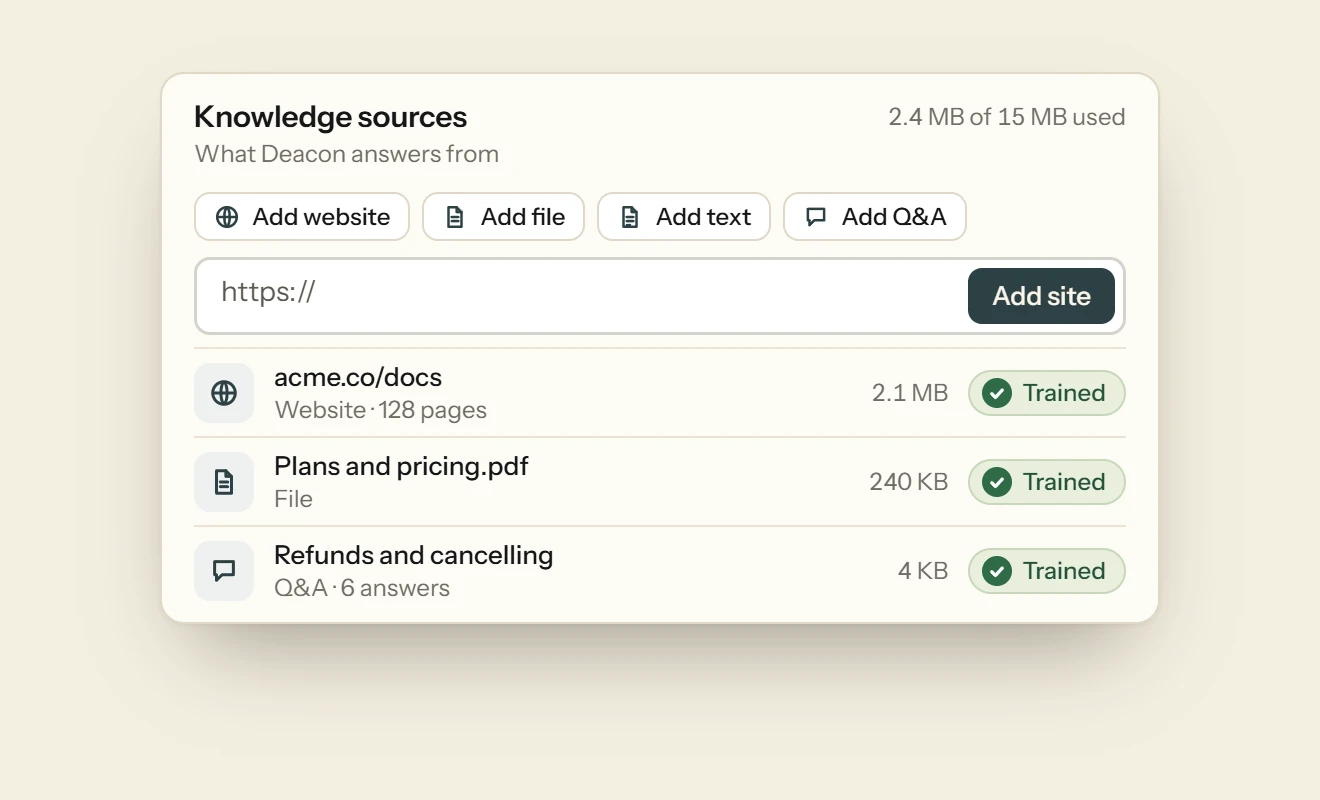
/policies/shipping-policyon your domain. A single page like this starts answering as soon as Deacon has read it. Add/policies/refund-policyand your FAQ page the same way. - For product questions, add the product pages shoppers ask about most the same way, one at a time. Deacon has already read your home page and up to four pages it links to, never your cart or account pages.
- Ask it your shoppers’ questions in the Playground before anyone else sees it.
What to check once it’s live
These checks take a couple of minutes.
- Open your store in a private window and look for the chat button. If you see two, Shopify Inbox’s chat is on as well. Switch it off under Online Store › Edit theme › App embeds › Online store chat, or move Deacon’s button to another corner on its Appearance page.
- Look at the top of Deacon’s Install page. It says whether Deacon is live on your site and when it was last seen, and it keeps checking by itself.
- Ask one question your policies answer and one they don’t. The first should get an answer, often with a link to the policy, and the second an honest “I don’t know” with a box for an email address.
- If you used
theme.liquid, read the theme card after your next theme update. “Code edits could not be included” means pasting the snippet into the new copy before you publish it.
Questions about Shopify AI chatbots
Does Shopify have its own AI chatbot?
Yes. Shopify Inbox is a free app whose Inbox agent answers shoppers from your catalogue, policies and pages, on the Basic plan and up. Sidekick, Shopify’s other AI assistant, helps you in the admin rather than your shoppers.
Is there a free AI chatbot for Shopify?
Yes, several, but check what the free part covers. Inbox’s agent is free and Shopify names no cap. Chatty’s free plan gives you 50 AI conversations a month, and Tidio’s gives you 50 Lyro conversations for the life of your account. Deacon’s free plan gives you 50 answers every month, with no card and no end date.
Do I need an app to add an AI chatbot to Shopify?
No. A hosted chatbot needs only its script tag in your theme, either in a Custom Liquid section in the footer or in theme.liquid. An app usually switches its chat on through the theme editor’s App embeds instead, and can connect to your orders and products.
Can Deacon look up an order or track a parcel?
No. Deacon has no connection to your Shopify admin, so it answers from your store’s pages and never sees an order. A question about one shopper’s order gets a polite decline and a box for their email, so you can reply. If order lookups in the chat matter most to you, that’s where Inbox’s agent is stronger, and Gorgias’s AI Agent can cancel an unfulfilled order or change its shipping address, as Zendesk vs Gorgias explains. Gorgias alternatives weighs it against other tools for Shopify stores. Our guide to AI chatbots for ecommerce sorts the tools by the job they do.
Does a chatbot work in the Shopify checkout?
No, not one that lives in your theme. The checkout runs no theme code, and the Thank you and Order status pages no longer take script tags on any plan. Your chatbot works on every page up to the checkout, the cart included.
Will a chatbot slow my Shopify store down?
Deacon’s tag loads in the background with async, so your pages don’t wait for it. Shopify’s code editor runs Theme Check, whose parser-blocking script check flags only script tags that have neither async nor defer.
Can Deacon learn from my store before it launches?
Not by reading your pages. A new Shopify store starts in private mode, which hides every page behind a password page, so a crawl sees only that page. Until you launch, paste your policies in with Add text or upload them as files. Each one starts answering as soon as Deacon has read it.
Will Deacon notice when I change a price or a policy?
Not by itself. Deacon answers from each page as it was when it read it, and nothing re-reads your pages on a schedule. After a change, choose Re-fetch on that page in Knowledge Sources, and Deacon answers from the new version as soon as it’s read. If your prices change every week, untick those product pages and let the page show the price.
What happens when Deacon’s free answers run out?
Shoppers get a short reply saying Deacon can’t look into it right now, and are asked for their email unless they already left it in that conversation. You can still read and reply to every conversation. Nothing is billed, and your plan never upgrades itself.
Try it on your own documentation
Add your help pages, ask it the question you know your docs cannot answer, and watch it say so.
The free plan covers 50 answers a month on one seat, and the paid plans are on the pricing page.
Free plan, no card.
READ NEXT
How to use Deacon
Install Deacon with one script tag, teach it your docs, make it look like your site and answer what it misses, step by step. Free plan, no card.
AI hallucination: what it is, with real examples
What an AI hallucination is, six real examples from Air Canada to Google, why chatbots make things up and how to make a support bot say it doesn’t know.
How to reduce support tickets as a founder
Most support tickets are the same few questions in different words. Here’s how to find yours, fix each at its cause and keep the messages that need you.